

Automatic Workspace Shutdown
Workspace Manager includes a background process that automatically detects idle workspaces and shuts them down to conserve resources. Understanding how this works helps you avoid unexpected shutdowns.
How It Works
Section titled “How It Works”The idle detection system uses a multi-stage algorithm to determine when a workspace should be shut down:
Initial Expiration
Section titled “Initial Expiration”When a workspace starts, it’s assigned an initial expiration time based on expected usage patterns.
Activity Detection
Section titled “Activity Detection”The system only scans workspace logs when a workspace is within 5 minutes of being shut down. When scanning, it looks for evidence of recent activity:
- Workspace startup
- New SSH session
- Web request
- SFTP transfer
If any of these activities are detected, the expiration time is extended.
Grace Periods
Section titled “Grace Periods”The grace period after detected activity varies based on time of day:
- Working hours: 30 minutes after last activity
- Off-hours: 15 minutes after last activity
Working hours are defined as 8am-6pm Monday through Friday in the timezone of the user who owns the workspace.
Shutdown Warnings
Section titled “Shutdown Warnings”When a workspace is approaching automatic shutdown, the system provides advance notice:
- 5 minutes before shutdown: Warning message sent to all open SSH sessions
- 1 minute before shutdown: Final warning sent to all open SSH sessions
This gives you time to either:
- Save your work and allow the shutdown
- Trigger new activity to extend the expiration
Manual Expiration Control
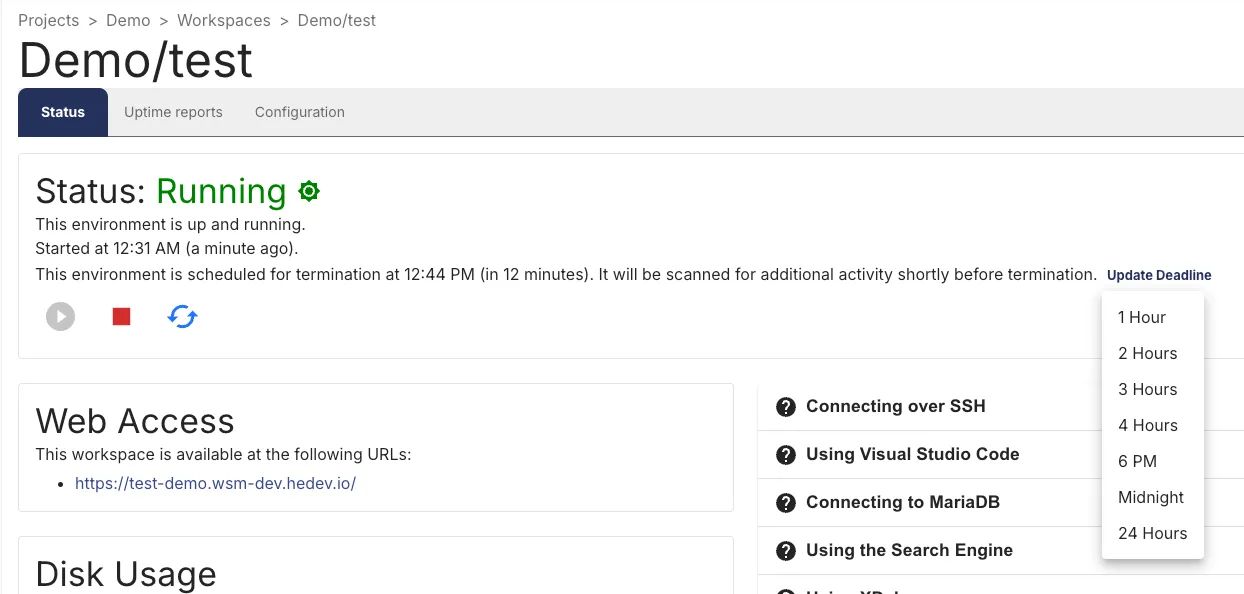
Section titled “Manual Expiration Control”The Workspace status page provides the ability to manually set workspace expiration times. This is useful when:
- You know you’ll be away from your keyboard but want to keep the workspace running
- You’re running a long process that doesn’t generate detectable activity
- You need to ensure a workspace stays available for a specific time period
Best Practices
Section titled “Best Practices”- Shut down manually: Don’t rely on automatic shutdown - explicitly stop your workspace when done
- Monitor warnings: Pay attention to shutdown warnings in your SSH sessions
- Set timezone correctly: Ensure your profile timezone matches your actual working hours
- Use manual expiration sparingly: Only extend expiration when truly necessary
- Plan for long-running tasks: If running processes that take longer than the grace period, consider using manual expiration or triggering periodic activity